Wean Hall (WEH)
All spaces include standard classroom technology with some additional features. Room features are listed below along with instructional guides for use.
VISIT 25LIVE FOR RESERVATIONS, NUMBER OF SEATS AND ROOM DETAILS
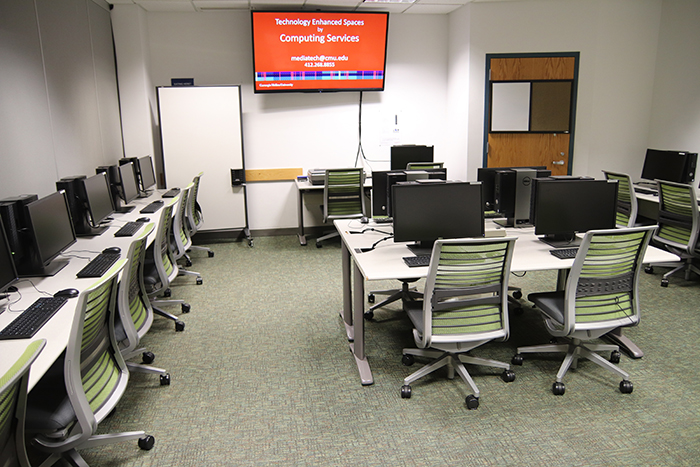
5201
- Operating System: Mac
- Computers: 34 + 1 instructor
- Additional Features: Blu-ray/DVD, multiple displays and inputs for instructor and students, document camera, wireless microphones, software-based conferencing from computer, two conferencing cameras, portable whiteboards
TECHNOLOGY GUIDE
RESERVATIONS
How to Access Specific Software Titles
Saving Files
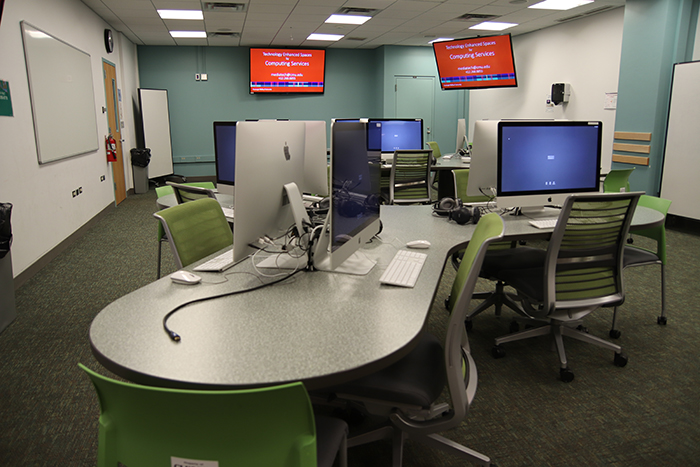
5202
- Operating System: Windows
- Computers: 32 + 1 instructor
- Additional Features: Blu-ray/DVD/ multiple displays, document camera, portable white boards
TECHNOLOGY GUIDE
RESERVATIONS
How to Access Specific Software Titles
Saving Files
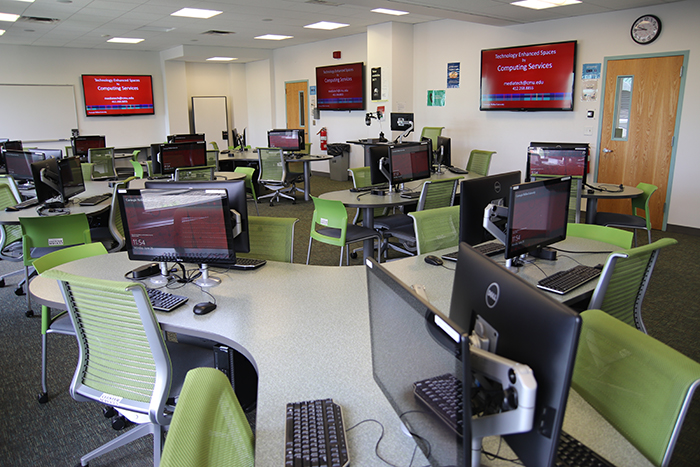
5207
- Operating System: Linux
- Computers: 16 + 1 instructor
- Additional Features: Linux OS, button pad controls
RESERVATIONS
How to Access Specific Software Titles
Saving Files
Wean 5207 is equipped with button pad controls. Follow the steps below to connect and present.
Connect
Wired Connection
- Connect the HDMI cable to your device.
- Tap the Computer 1 icon on the button pad.
Note: to display the Lab machine, tap the Computer 2 icon on the button pad.
Wireless Connection
- Tap the Wireless Presentation icon on the button pad.
- Follow the on-screen steps to connect your device.
- Disconnect via the wireless presentation app or tap the Power button on the button pad.
Present
Button Pad
- Tap the button pad to wake it.
- Tap the Power button to turn on/off.
- Select your connection: Computer 1, Computer 2 (Lab machine), or Wireless Presentation.
- Adjust the volume along the bottom of the button pad.
- Ensure you turn the pad off when you are done.