Standard Zoom-Integrated Teaching Spaces
In spaces equipped with standard integrated Zoom technology, you can start a Zoom meeting directly from the touch panel. These controls are similar to those found in the Zoom app on your computer. This document provides instructions for using the classroom technology to support both in-person and remote participants.
Rooms with this technology
Technology Overview

Mounted Camera
Zoom-integrated spaces are equipped with wall-mounted or ceiling-mounted cameras similar to the model pictured here.

BirdDog Camera
Some Zoom-integrated spaces are also equipped with BirdDog cameras similar to the model pictured here.

Ceiling-Mounted Microphone
Zoom-integrated spaces are equipped with ceiling-mounted microphones, which can be fitted to a ceiling tile (pictured) or bar-style, hung from an aircraft cable.

Touch Panel
The existing touch panel and room projectors control what is presented in the classroom and to remote Zoom participants.
Get Connected
Connect your laptop and share your screen with the room
Do one of the following:
- Wired - Connect the HDMI or USB-C cable (if available) to your laptop and tap Laptop on the touch panel.
- Wireless - Tap Wireless Presentation on the touch panel and follow the on screen steps to connect.
I'm set up; I want to...
Display multiple devices
- Under Display Controls, tap tap where you’d like the additional device to display (left, right, or both).
- Under Devices, tap the additional device to display (i.e., Desktop, Document Camera, etc.).
- (Optional) Under Display Controls, tap Blank Screen/Unblank Screen to toggle the room screens on or off in the corresponding location.
Display the document camera
- Place the materials under the document camera.
- Tap Document Camera on the touch panel. The document camera will use the room projector to display images.
Preview a device on the monitor
- Under Actions, select Video Preview.
- Tap Desktop to preview on the monitor.
- Tap Left Display or Right Display to preview additional devices (if applicable).
- Tap the arrow to return to the touch panel menu and exit Video Preview mode.
Zoom Capabilities
Connect to Zoom
If you have remote participants, connect to Zoom using the panel, not your laptop. This method provides better control over the cameras and other room technology.
- Tap Conferencing on the touch panel, then Zoom App.
- Tap Join and then enter the Meeting ID and Passcode from the meeting invitation. Or, use your personal meeting ID.
- Use the Zoom Controls on the Zoom App touch panel screen to control volume, record, chat, invite, and more.
- Tap End Meeting for All to end the Meeting.
Note: Camera controls are available once you start your video.
Share a presentation with Zoom and the room
- Open the presentation on your laptop.
- Swipe down from the top of the Zoom App screen to display the panel menu.
- Tap Home.
- Tap Presentation (bottom) and select Laptop.
Zoom supports only single-device sharing. - Tap Zoom App.
- Tap Share, then Share to Meeting.
- Tap Sharing Content, then Stop Sharing to stop sharing.
Access other panel controls while using Zoom
Once you're connected to Zoom, swipe down from the top of the touch panel and tap Home to move from the Zoom App to other room controls (e.g., camera and display).
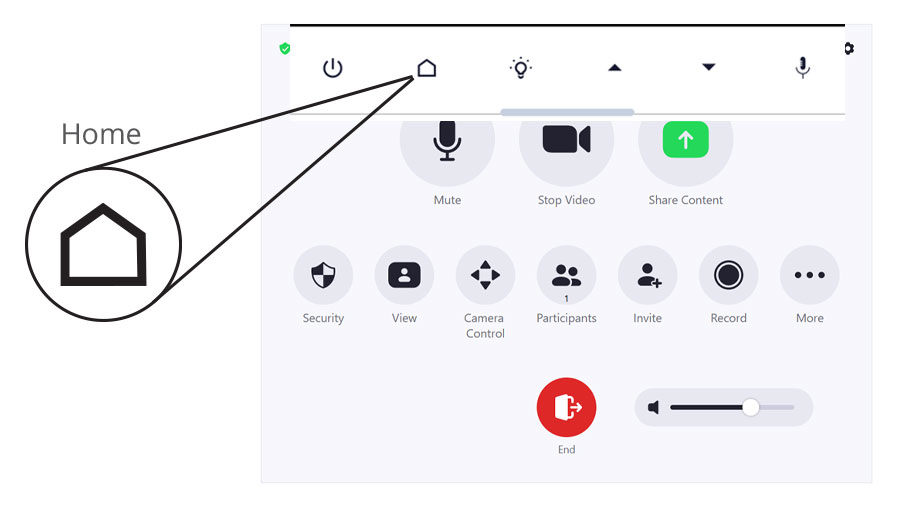
Return to the Zoom meeting
Tap Zoom App on the panel.
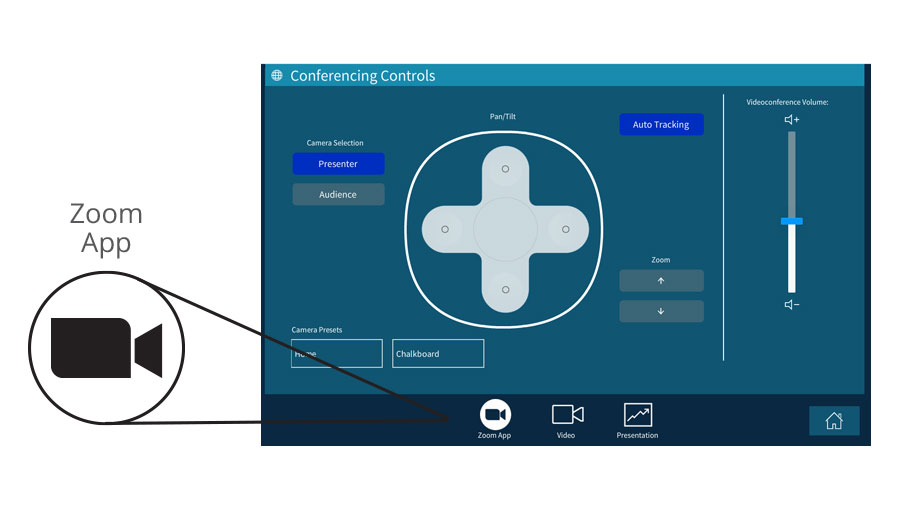
Note: If you returned to the main panel screen, tap Conferencing > Zoom App.
Share the document camera
- Place the materials under the document camera.
- Swipe down from the top of the Zoom App screen to display the panel menu.
- Tap Home.
- Tap Presentation (bottom) and select Document Camera.
Zoom supports only single-device sharing. - Tap Zoom App.
- You may see a pop-up that states, “Local Content is connected.” Select Share to Meeting to share with remote participants, or select View Locally to display only in the room.
- If you did not see the pop-up, tap Share, then Share to Meeting.
- Tap Sharing Content, then Stop Sharing to stop sharing.
Note: Document Camera controls (zoom, brightness, etc.) may be located on the document camera itself or on the touch panel (for ceiling-mounted document cameras).
Control the camera
Zoom App Options
- Tap Camera Control on the Zoom App screen.
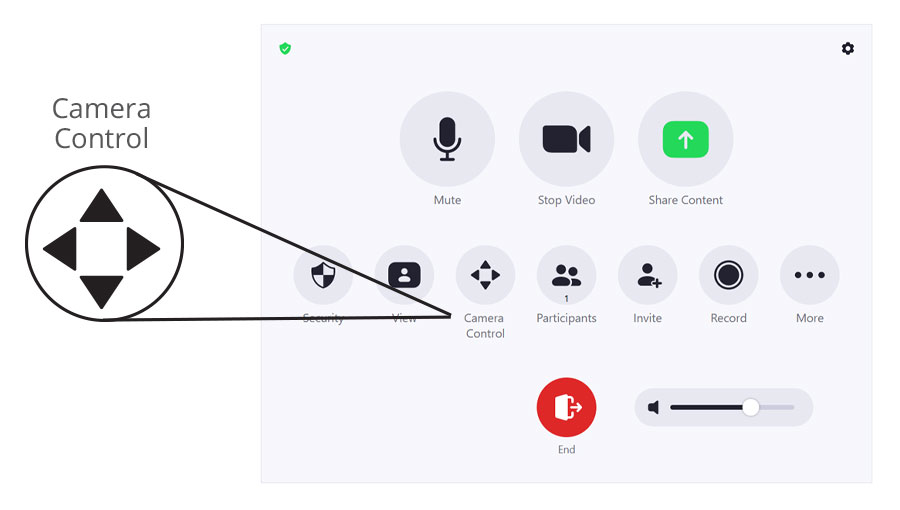
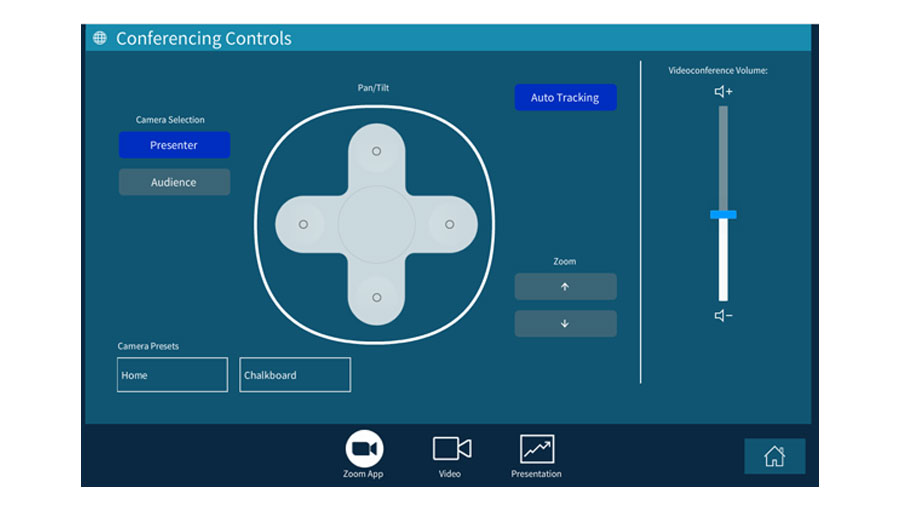
- Use the options to pan/tilt, zoom in/out or turn off mirroring.
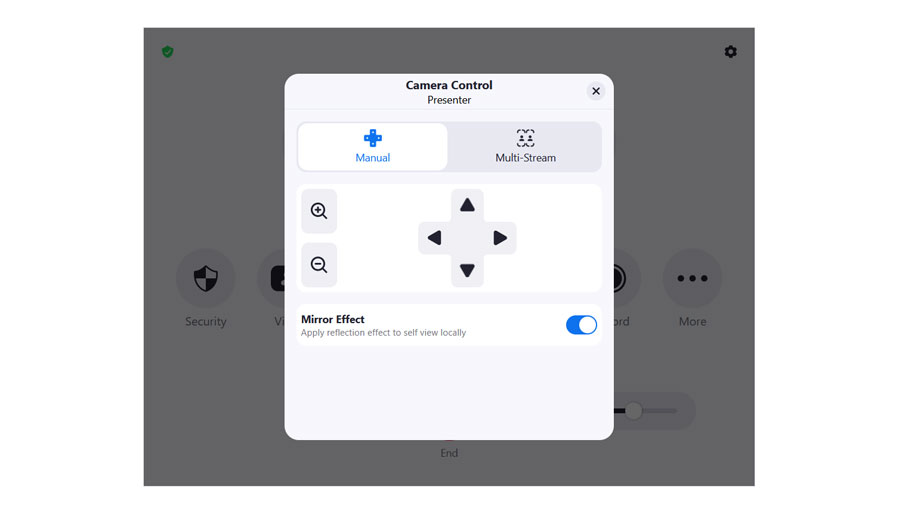
Panel Options
- Swipe down from the top of the Zoom App screen to display the panel menu.
- Tap Home, then Video.
- Use the controls to pan/tilt the cameras.
- Choose the camera.
- Presenter > Home (under preset) - wide front view of the room
- Presenter > Chalkboard (under preset) - zoomed-in view of chalkboards
Record the class/meeting
- Tap Zoom App.
- Tap More, then Record. All participants will be notified that the meeting is being recorded.
- The recording will be saved to your Zoom account.
For additional topics on Zoom Recordings, see Meeting Controls and Tools.
Help and Support
EQUIPMENT ISSUES
Phone: 412-268-8855 (+ option 1)Hours: Monday – Friday: 8 am - 10 pm