Service Requests
Anyone may request services from Carnegie Mellon's Facilities Management Services department. Those with an CMU Andrew ID can submit service requests online using the links below. Requests for housing and campus services buildings are reviewed by the Facility Coordinators of those buildings.
Submit a new service request
(for administrative, academic, housing and campus service facilities)
Look up the status of an existing service request
View information about how to submit a new FMS service request for details on new requests. (Note that if you are off-campus, you will need to be connected to CMU’s VPN to securely access the system.) Each request will receive a work order number. Please refer to that number for any inquiry about your service request. The requestor will also receives an email notice when the work is complete.
Submitting a New FMS Service Request
Note: This new application is a part of the Maximo upgrade to the Maximo Application Suite (MAS). Feature improvements are planned for the future. Please report any issues to fixit@andrew.cmu.edu.
Accessing the Service Request System
Open the online FMS service request system and click the blue circle icon with a plus sign to initiate a new request.

Navigating the Service Request Page

- Emergency Information
The page header includes information for emergency situations. For any maintenance emergency, call the FMS Service Response Center (SRC) at 412-268-2910. The SRC answers calls 24/7. Examples of maintenance emergencies include: elevator entrapment, flooding, power outages, etc. Contact Campus Police for life threatening emergencies. - Important FMS Links
- Who Pays for What?
Find out if the work you are requesting carries a departmental charge. - Contact FMS
Call or email the FMS Service Response Center for urgent issues or clarification. - FMS Project Request Form
Some extensive projects, such as office renovations, require project management to complete. If you are requesting project management for a larger project, please use this form. - COMING SOON: A link to the system where you can view the status of existing work requests.
- Who Pays for What?
- Search Field
Use this search field to quickly find the category you need. - Categories
Select the category of maintenance you are requesting to link to the form designed for specific needs. - Freeform Request
If the categories in section 4 do not cover the maintenance you are requesting, use the “Can’t find what you are looking for” link to complete a general request form.
Submitting a New Request
First, choose the category of the type of work you are requesting. The request form is based on the category selected. In the example screenshot below, the category is Carpentry.

Each category has a list of the most common requests for that type of maintenance. Select the one that best fits your request. There is always an “Other” option if your request type is not in the list.
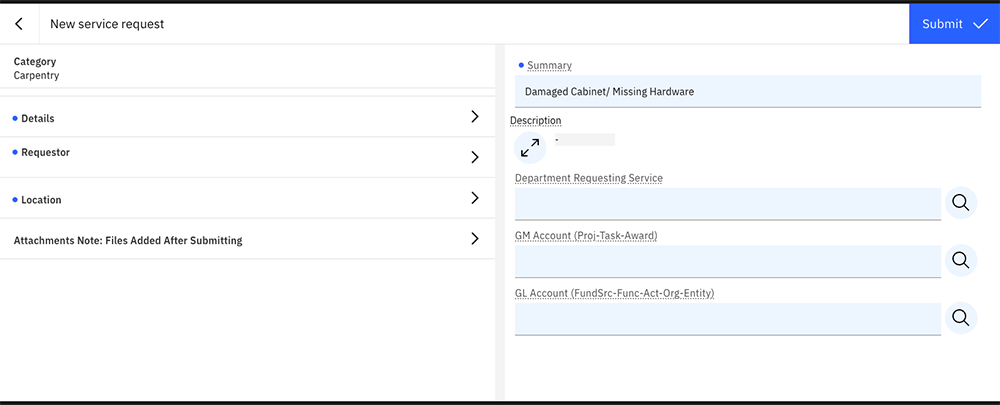
Form fields, from top to bottom, left to right:
Category
Category shows which form type is selected.
Details
Click on the arrow for details to open the right side of the screen where information about the request can be entered.
- Summary
The Summary is the title based on your request selections (Short Description) that will appear on the work order. This field is editable. - Description
Click on the arrows to open a text box where you can provide an explanation and details of the request. (Long Description) Include any information that will help SRC and the Supervisors assign the required work. Click on the arrow at the top left of the screen to return to your service request. - Department Requesting Service
Add the department requesting the service by selecting from the validated list. The list can be found by clicking on the search icon. Department names can be typed into the Department text box ONLY if they match validated list entries. - GL/GM
If your maintenance request requires a departmental charge, select it from the validated list found by clicking on the search icon. In the validated list search, it is possible to search on any GL component. For example, if an organization number is entered in the GL search, all numbers with that organization will appear. Select the one that you are looking for. Example: If you are looking for a GL account with an organization of 123456, enter 123456 in the search box and then select the GL account you need from the filtered list.
Requestor
The Requestor field will show the name of the person who has logged into the application. By selecting the arrow, you can make changes to the Requestor. If someone other than the person completing the form should be contacted regarding the request, use the search feature under full name by entering their Andrew ID. Select the correct person from the validated result. This will update all three fields identifying the requestor. Please edit the phone number to the Requestor’s mobile number or the best number where the Requestor can be reached. If the Requestor is not available to respond to calls, FMS staff may have to delay progress on the request.
Location
Enter the location for the requested work. Select the eyeglass icon to search for a specific building or location.
Attachments
You can add attachments to this service request after you submit it. (see details below)
Submit
When the request form is completed, click the blue “Submit” button. Note: All requests must contain Requestor, phone number and Location. Depending on the other category, other fields may be required. Look for the small blue dot next to required fields.
Adding Attachments and Comments to Your Request
Once you’ve submitted the new request form, you can add attachments or comments to your request. The screenshot below shows an example of a submitted request. Note the SR-number appears on the top left of the screen. Attachments and Requestor Comments can continue to be added until the work is completed. Use the arrow to the left of the Service Request page title to view your requests.
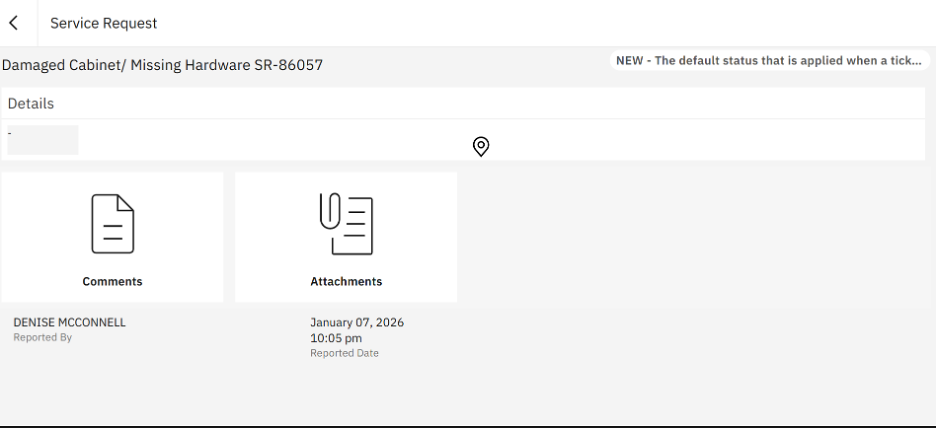
Attachments
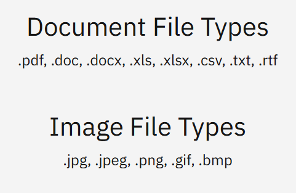
Any photos, drawings, or documents that enhance the information in the request can be attached after the request is submitted. Select the Attachments icon and add the files.
Comments
Select the Comments icon to add information regarding the request. The comments become a permanent part of the work order. Once the request is completed, you can close the page. Or use the arrow to view your requests or create another new request.
Viewing Existing Service Requests
FMS is continuing to migrate its online work order ticketing system from the previous software to the new request system. Users can view the status of all existing service requests for their team using the previous system URL. Users may also view their own requests here in the new system to add items like attachments and comments, as noted above.
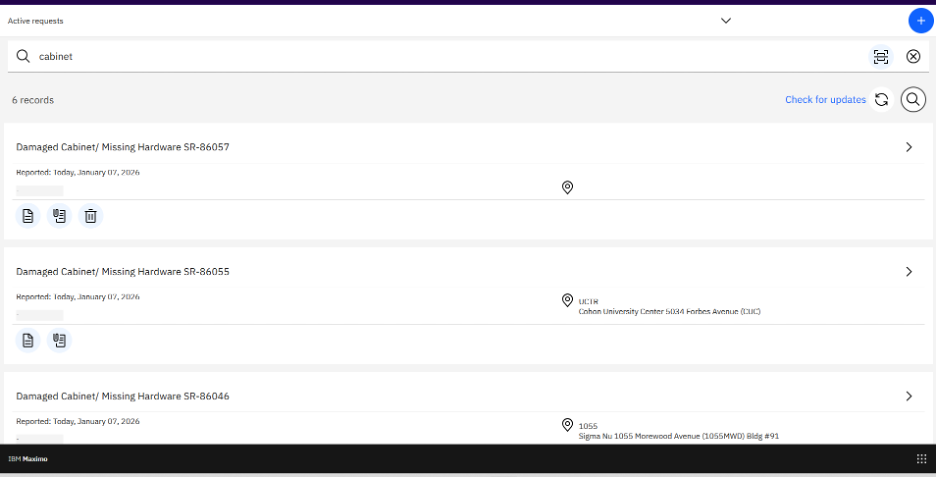
Once you have begun submitting requests, you will see the list of your current requests on the system main screen. The nine dots on the bottom right of every screen are a navigation tool that can help you navigate to your existing requests – just select the Service Requests icon. (Maximo users can also use this nine-dot navigation shortcut to return to their Start Center if desired.) You can use the refresh button to view any updates. The search icon allows you to find specific service requests by entering a part of the title. (For example, enter “cabinet” to find all of your Service Requests regarding cabinet repair.) If you know the SR number, enter that to find the specific request. New requests can be deleted, if necessary, using the trash can. Comments and attachments can continue to be added to the request until the work is completed.
Creating Additional Requests
Select the blue circle icon with the plus sign on the right of the system main screen to initiate a new request. This will lead to the service request page to select your category and begin the new request.
Questions? This short instructional video walks you through the process.
Last updated Sept. 16, 2026