Add Your Syllabus
It takes about a minute. Choose whichever way is easiest for you; both put your syllabus in the same place.
Option 1: Upload on the web
- Go to syllabus-registry.tli.cmu.edu, sign in, and select My Courses.
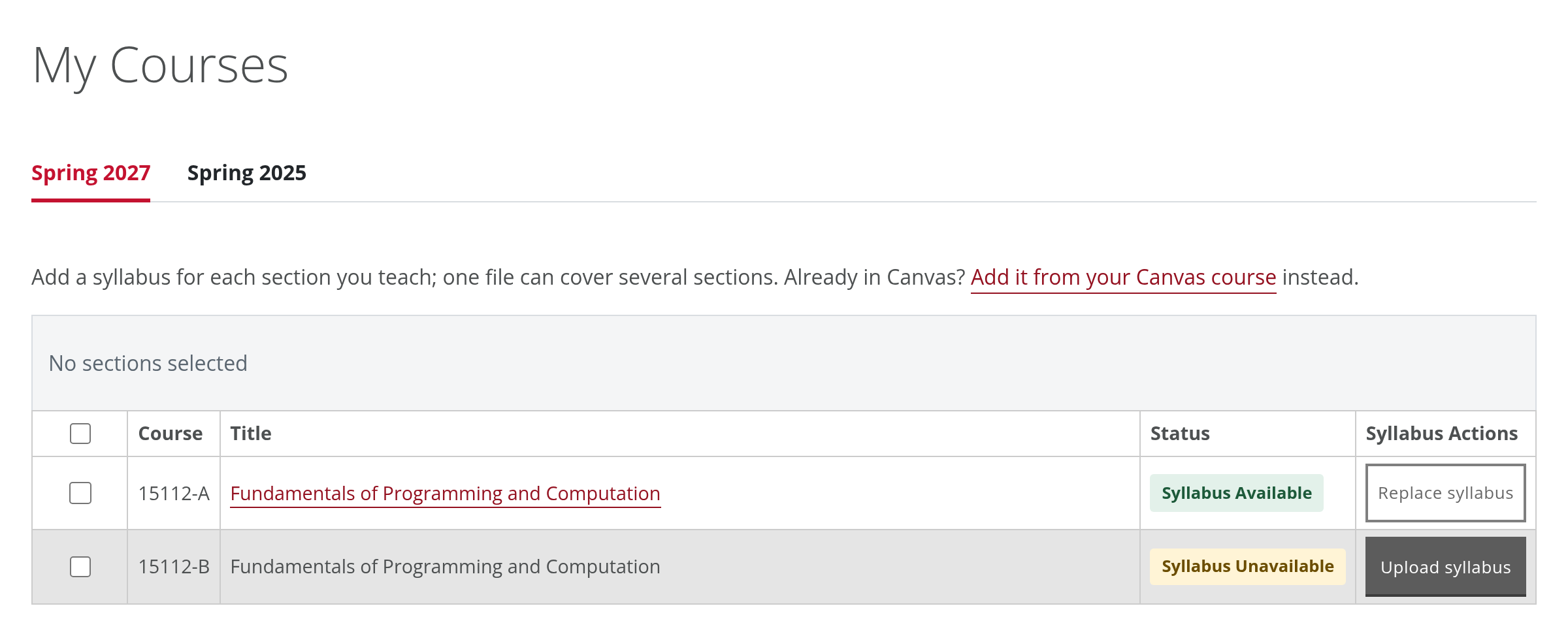
- Pick the semester from the tabs at the top. You'll see every section you're listed as teaching, with its status.
- Select Upload syllabus in a section's row. To use one file for several sections, check their boxes, then select Upload syllabus in the bar above the table.
- Drag your file into the box that opens, or choose it, then select Upload syllabus (or Upload to N sections).
That's it. Your syllabus is available in the registry right away. To change it later, select Replace syllabus.
Option 2: Choose it from Canvas
- Open your course in Canvas and select Syllabus Registry in the course menu on the left.
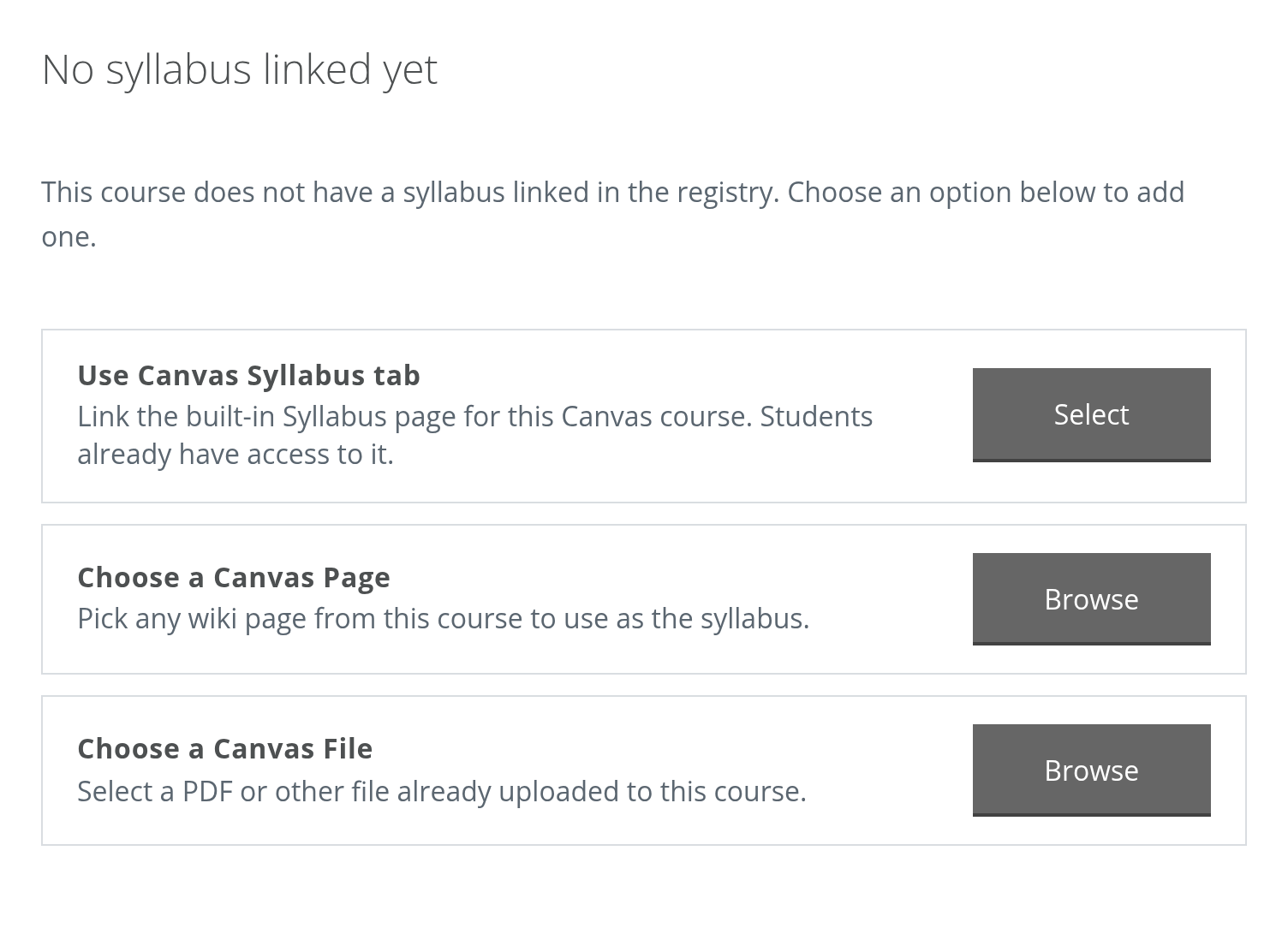
- Choose where your syllabus is:
- Canvas Syllabus tab, the built-in Syllabus page;
- a Canvas page in your course; or
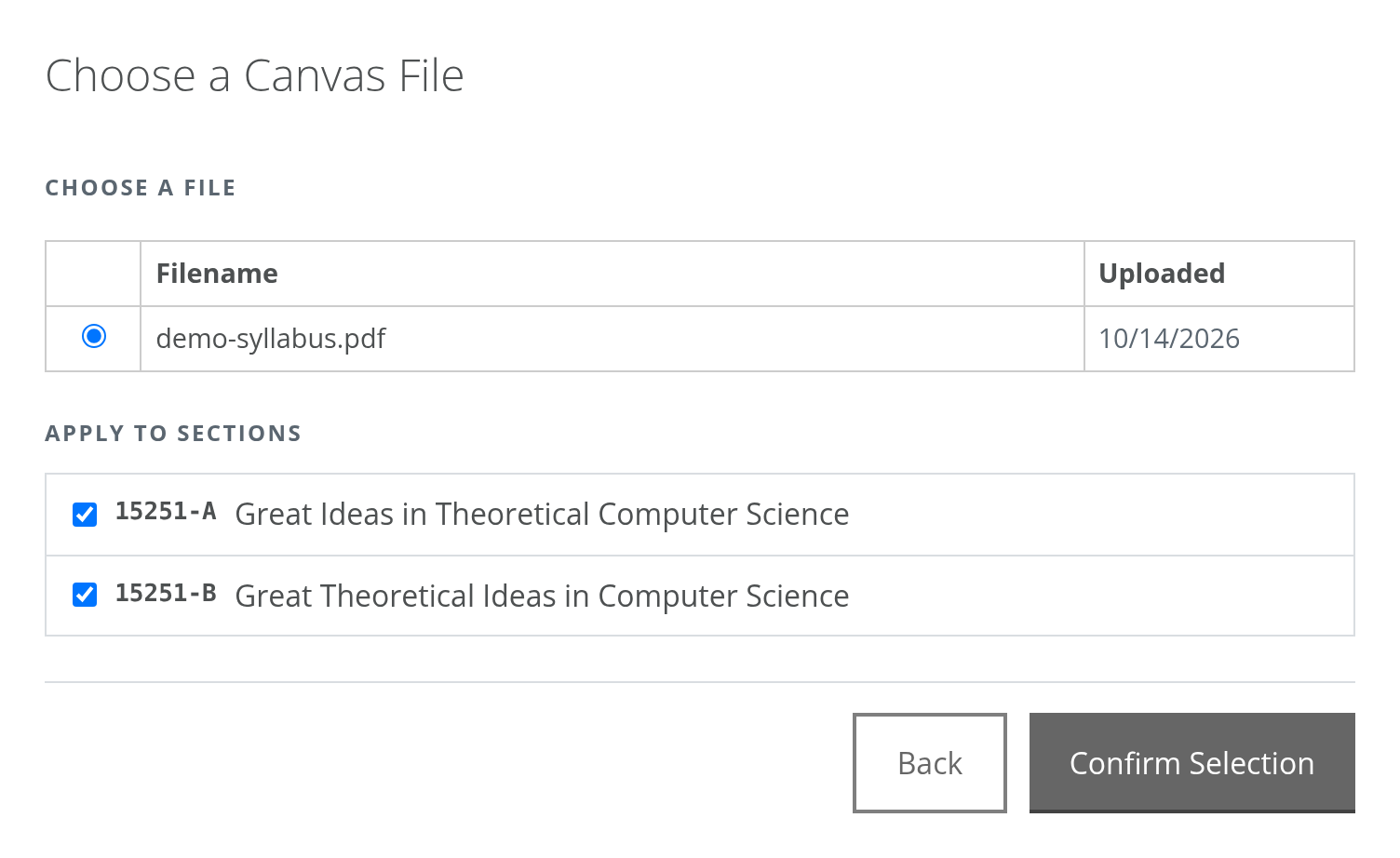
- a Canvas file, such as a PDF you’ve uploaded.
- Confirm which sections it applies to, then select Confirm Selection.
Edited it in Canvas?
The registry keeps a copy of what you chose at the moment you chose it. After a significant change, open Syllabus Registry in Canvas again and re-select it so the registry has your latest version.
Don’t see “Syllabus Registry” in your Canvas course menu?
- In your course, go to Settings and open the Navigation tab.
- Find Syllabus Registry in the list of hidden items, select its menu (⋮), and choose Enable.
- Select Save.
Or skip Canvas entirely and use Option 1.
Good to know
- Teaching several sections? Select them all at once; you only need to upload one file.
- Need to change it? Select Replace syllabus in My Courses, or choose it again in Canvas, at any time. The newest syllabus replaces the old one.
- File types: Any document up to 20 MB, such as a PDF or Word file; PDF works best for readers. Zip and other archive files aren't accepted.
- Syllabus on a website? Use your browser's Print > Save as PDF and upload that file. Include the course web address in the PDF.
- Course or section missing? Your section list comes from the university's course schedule. Ask your department administrator, or email eberly-assist@andrew.cmu.edu.