Department Admin Quick-Start
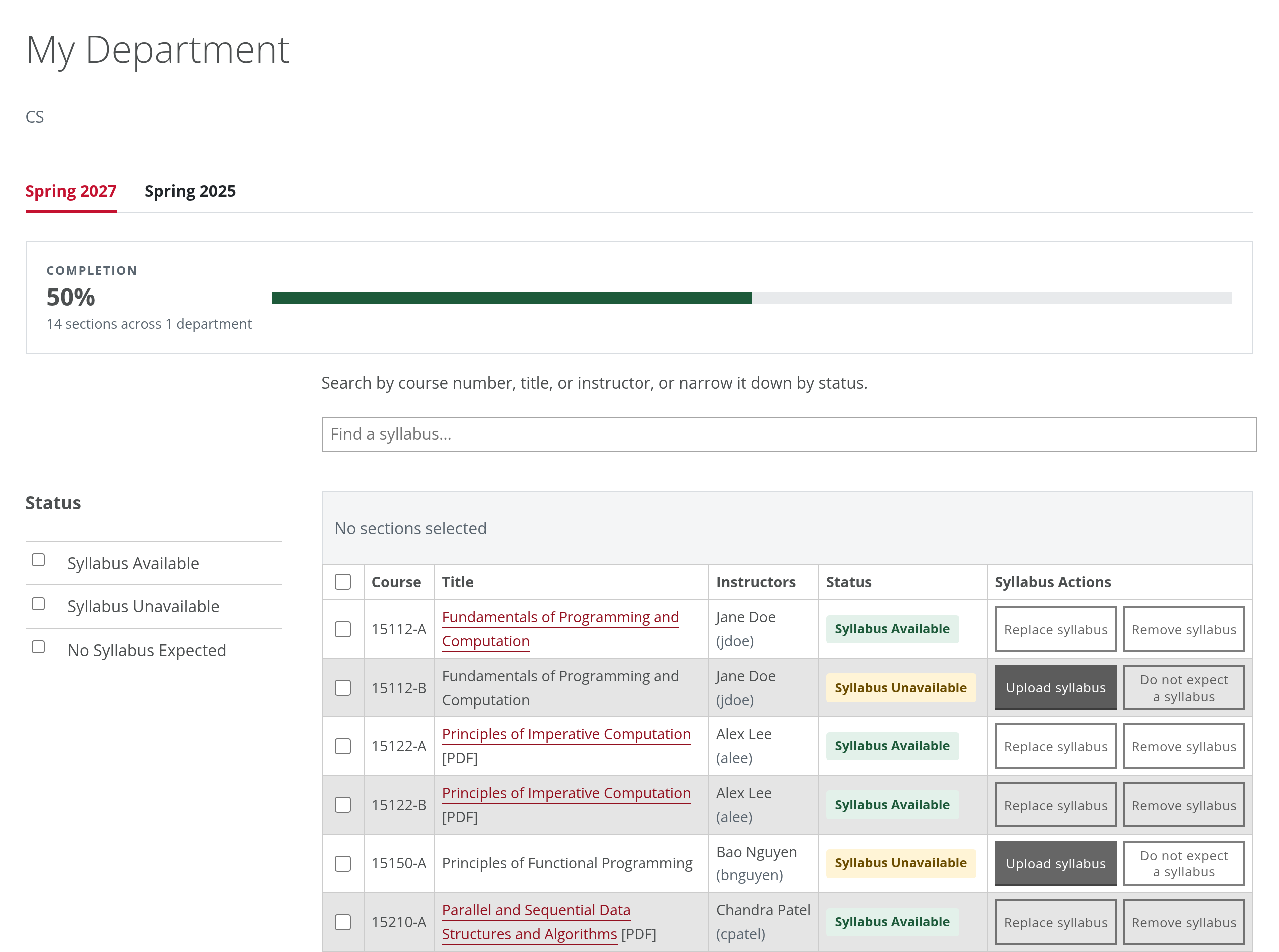
Make sure every section in your department has a syllabus. The dashboard shows what's missing, lets you upload one file for many sections, and lets you set aside sections that don't need one.
1. Sign in and check your access
- Go to syllabus-registry.tli.cmu.edu, sign in, and select My Department(s).
- Pick the semester from the tabs under the heading.
- Confirm the department(s) shown in the heading are the ones you administer, and that the section count looks right.
Missing a department, or seeing one that isn't yours? Email eberly-assist@andrew.cmu.edu. You can only see and change the departments you're assigned to.
2. Find sections that need attention
The completion bar shows how much of your department is done. Sections with a syllabus and sections marked "No Syllabus Expected" both count as complete.
To see only what's left, check Syllabus Unavailable under Status. Use the search box above the table to narrow by course number, title, or instructor.
3. Upload for one or many sections
- For a single section, select Upload syllabus in its row. For several, check their boxes, then select Upload syllabus in the bar above the table.
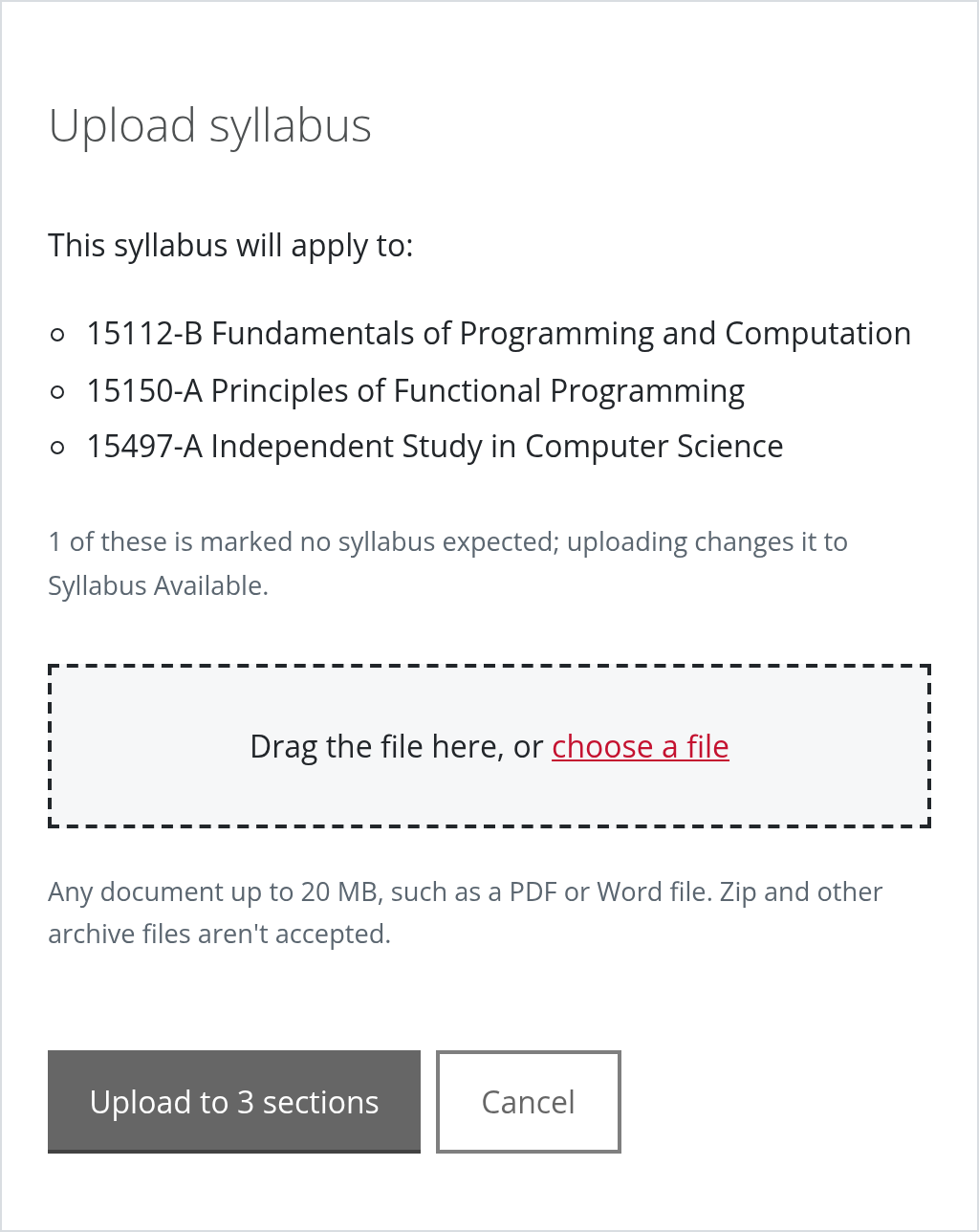
- Drag the file into the box that opens, or choose it. The box lists every section it will apply to.
- Select Upload syllabus (or Upload to N sections).
To swap out a syllabus that's already there, select Replace syllabus in its row.
No special file names needed. Any document up to 20 MB works, such as a PDF or Word file. Zip and other archive files aren't accepted.
Before you upload
Uploading replaces any existing syllabus on the sections you select, including one an instructor added, and changes any marked No Syllabus Expected to Syllabus Available. The upload box tells you when either applies.
4. Set "No Syllabus Expected"
Some sections genuinely don't have a syllabus: independent studies, internships, research, thesis, and similar.
- Select Do not expect a syllabus in the section's row, or check several sections and apply it to all of them.
- Changed your mind? Select Expect a syllabus. If a syllabus turns up, just upload it: the section changes to Syllabus Available.
- It carries over: a new section starts as No Syllabus Expected when the same course number, section, and title had that status in the past year. Sections whose title changed won't match, so look over new sections each semester. More in the FAQ.
- Only use this when a syllabus really isn't expected. It counts the section as complete.
5. Check what students see
Course titles with a syllabus are links; select one to view the syllabus exactly as readers will see it. If something's wrong, select Replace syllabus or Remove syllabus.
What changed from the old process
| Before | Now |
|---|---|
| Find your department's Canvas course each semester | Sign in at one address and pick the semester |
Rename every file 15112-A.pdf |
Upload with any file name; pick sections by checkbox |
| One file per section | One file can cover many sections |
| Drag items between "Available," "Unavailable," and "Individualized Experiences" modules | One click: "Do not expect a syllabus" |
| Count modules to see where you stand | Completion bar and status filters |
| Instructor uploads in Canvas overwrote yours overnight | The most recent syllabus wins, whoever added it |